Netconyzer
The network scanner for iPhone and iPad. Find every device on your Wi-Fi, see what it is, and fix connection problems with ping, port check, DNS and Wake-on-LAN.
- No account
- No ads
- No tracking
Everything you need to understand your network
One app instead of a drawer full of network tools.
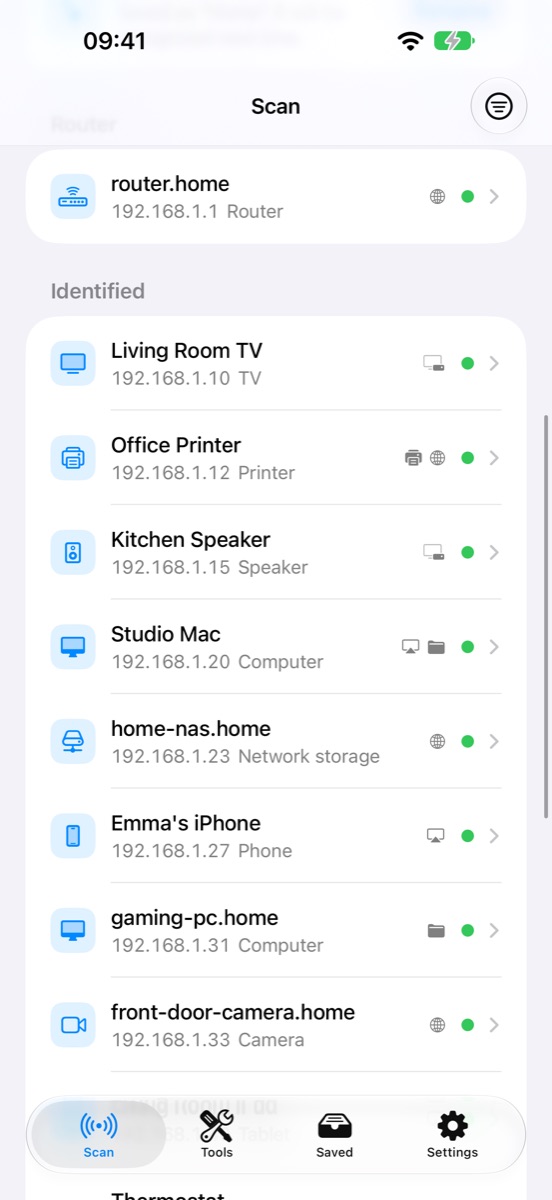
Network scan
Every device that answers on your Wi-Fi, in seconds.
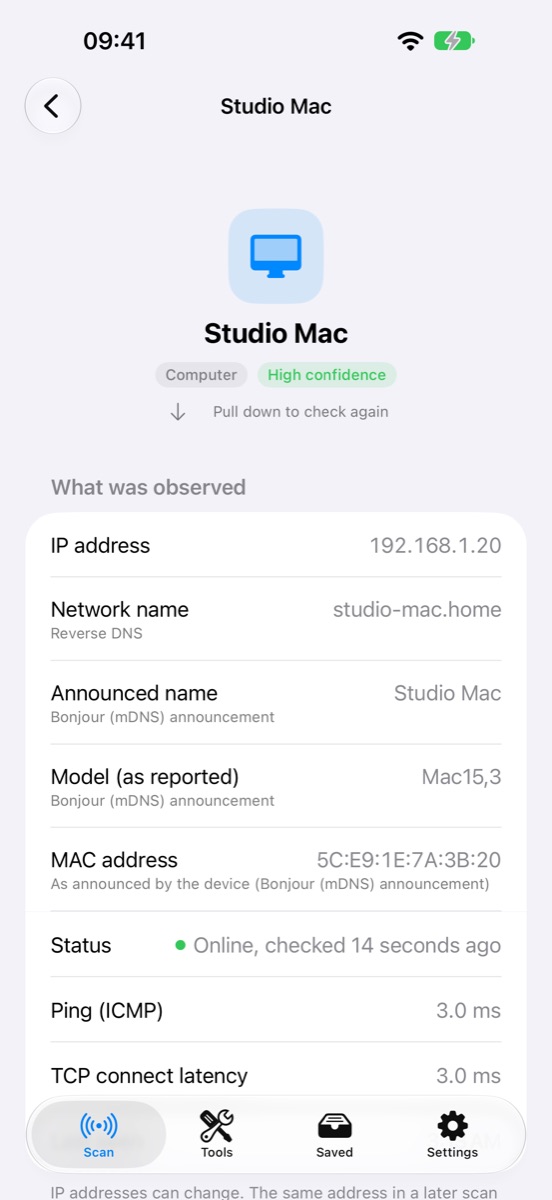
Device details
Names, addresses, model, services, and why the app thinks it's a TV.
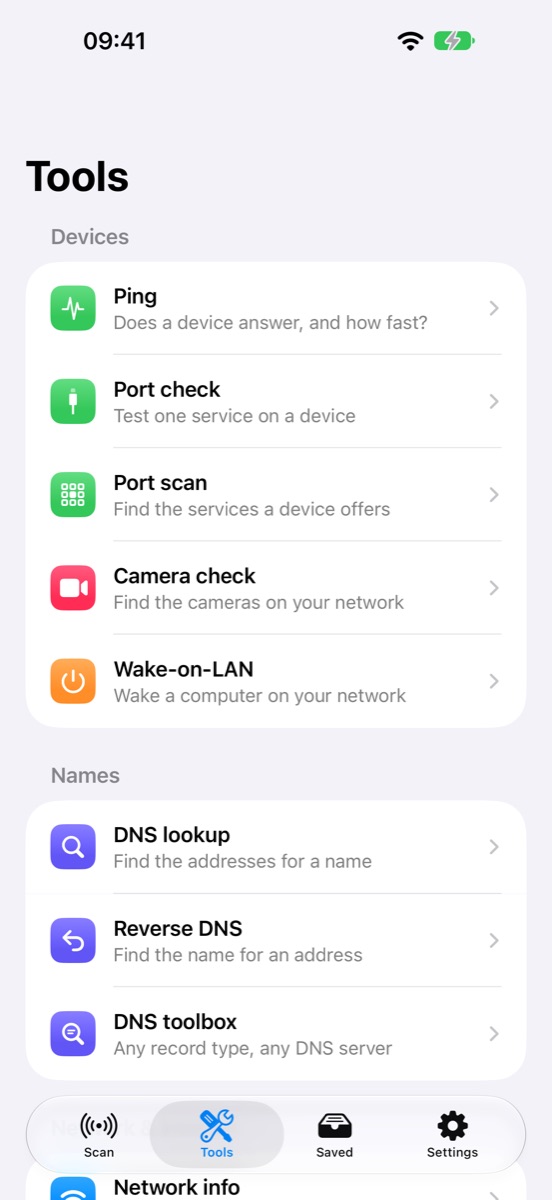
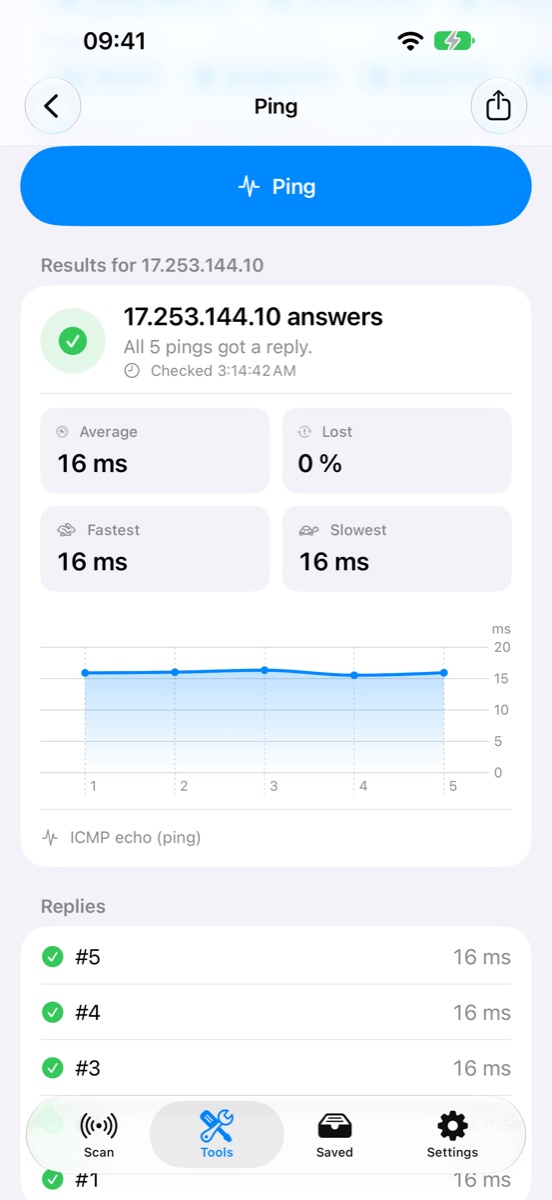
Ping
Does it answer, and how fast? With a latency chart.
Port check and scan
Test one service, or see everything a device offers.
DNS tools
Lookup, reverse lookup and a toolbox for any record type.
Wake-on-LANPro
Wake your computer from the app, a widget, Control Center or Siri.
Camera checkPro
Finds cameras that show video without a password.
Wi-Fi walk testPro
Walk through your home and find the weak spots.
Widgets
Your network, one device or Wake-on-LAN on the Home Screen.
Service browserPro
See what your devices announce on the network.
History and comparePro
Save networks, keep scans and see what changed.
Exports and backupsPro
CSV, PDF and JSON, and backups you can restore.
See every device on your Wi-Fi
One tap finds what's connected: phones, computers, TVs, printers, speakers, cameras and smart home gear. Each one gets a name, an address and a type, with the router and the devices the app recognizes first.
- Names from Bonjour, UPnP, NetBIOS and reverse DNS
- Quick check of the devices you know, in seconds
- Search, filter and sort
Know what each device is, and why
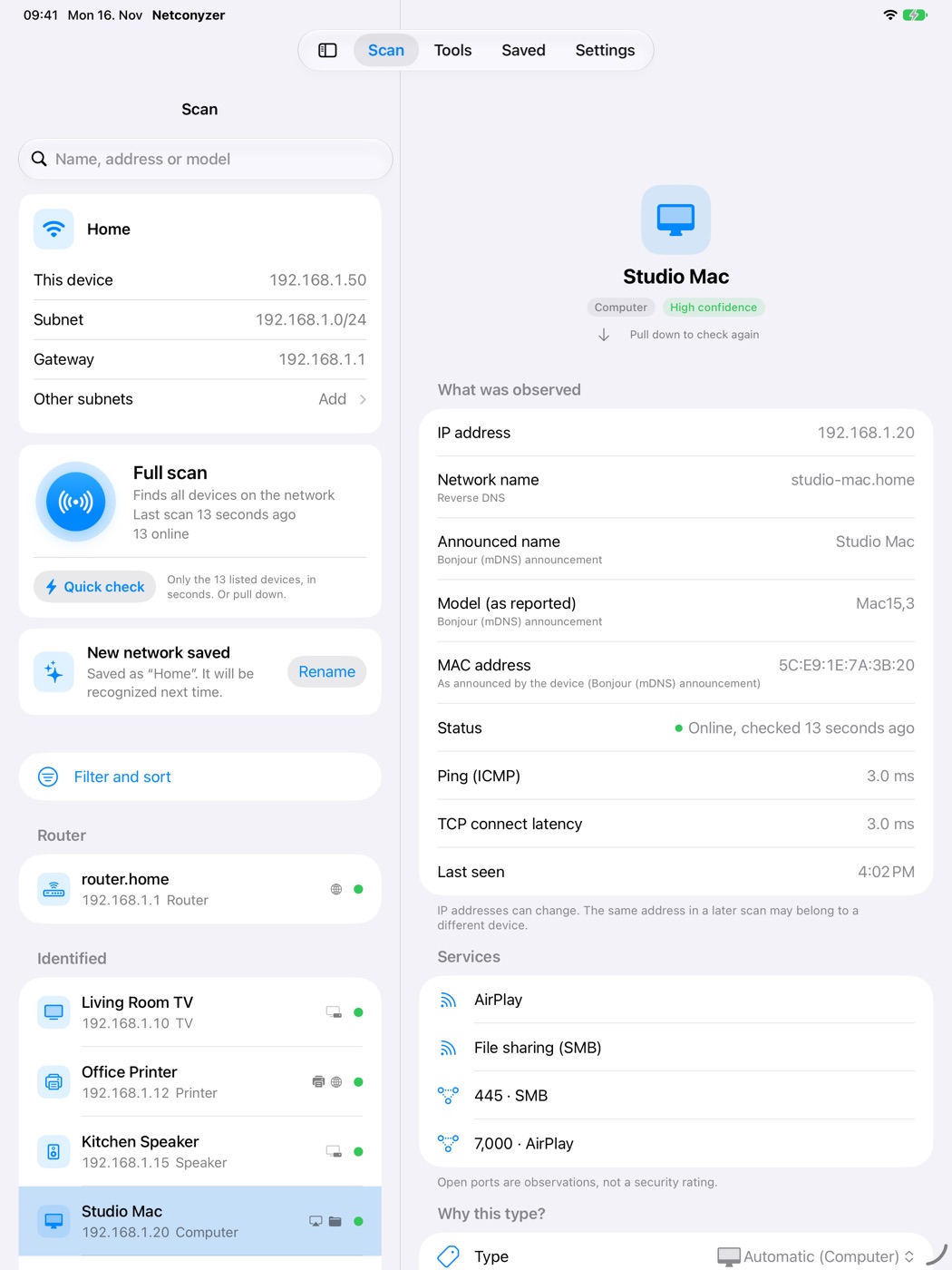
Open a device to see what the network revealed about it: names, model, MAC address when the device announces it, services and response time. The app shows where each detail comes from and how sure it is about the type.
- Confidence and reasons for every device type
- Your own names, notes, tags and types
- Pull down to check it again
The tools you need when something stops working
Is the printer offline or just asleep? Is the server's port open? Does the name resolve? Ping, port check, port scan, DNS and an internet check answer it, for devices on your network or any address on the internet.
- ICMP ping with a latency chart
- Port check and port scan with service names
- DNS lookup, reverse DNS and a DNS toolbox
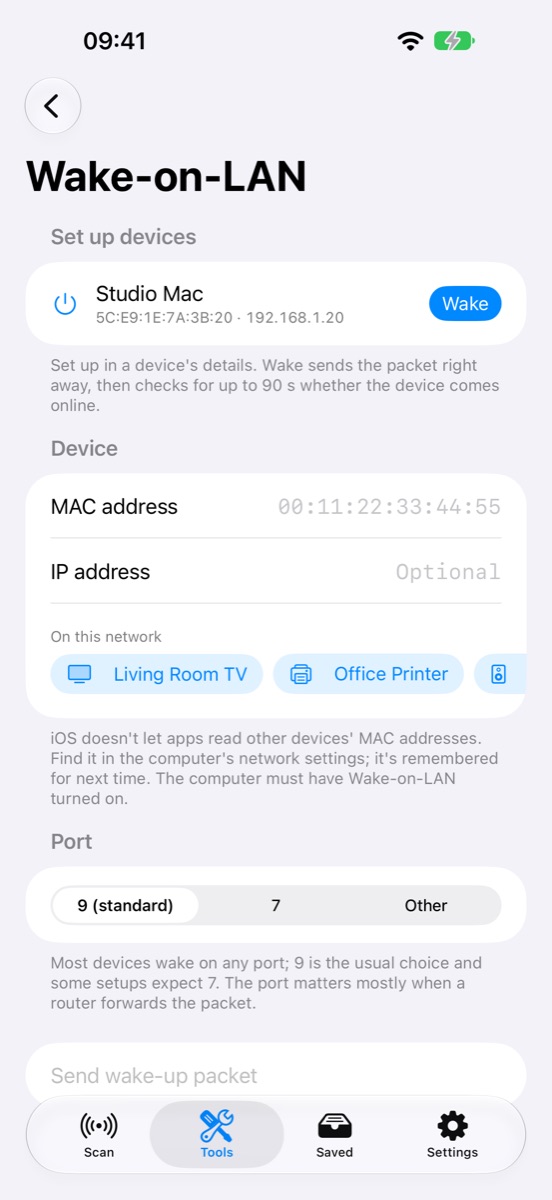
Wake your computer without getting up
Set up a computer once, then wake it from the app, a Home Screen widget, Control Center or by asking Siri. The app then checks for up to 90 seconds whether it came online.
- MAC address filled in when the device announces it
- Wake from widgets, Control Center and Shortcuts
- Shows when the computer is back online
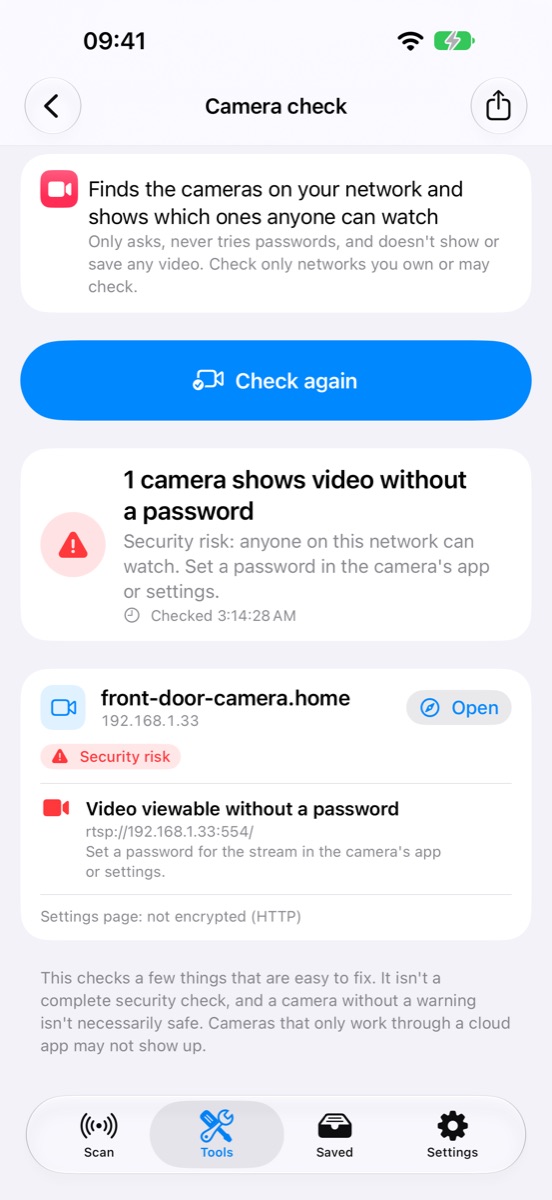
Find cameras anyone on your network can watch
The camera check looks for cameras on your network that show their video without a password, and tells you how to fix it. It only asks: it never tries passwords and never shows or saves any video.
- Finds open video streams and settings pages
- Plain advice for each camera
- Never tries passwords
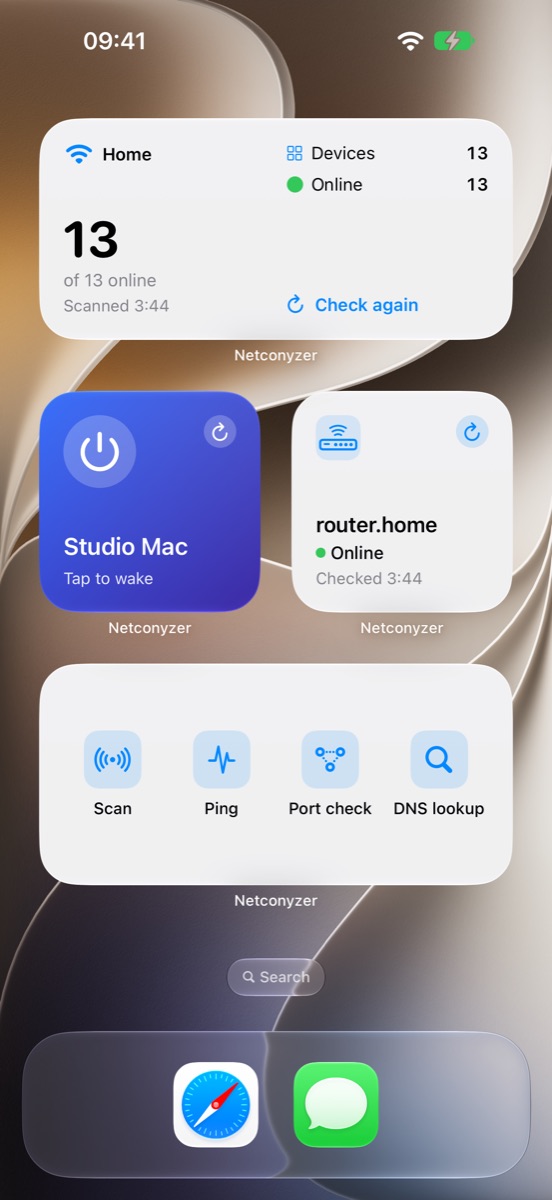
Your network on your Home Screen
See how many devices are online, keep an eye on one device, wake a computer with one tap, or open a tool straight from the Home Screen. Every widget shows how old its data is.
- Network, device, Wake-on-LAN and quick tools widgets
- Refresh right from the widget
- A Control Center control for Wake-on-LAN
Made for the big screen too
On iPad, the device list and the details sit side by side.
Your network stays yours
- No account
- No ads
- No analytics or tracking
- No servers: your scans stay on your device
- No scanning in the background
Read the privacy policy for the details.
Free to use, with an optional Pro upgrade
Pro is a single purchase for people who use it often. No subscription.
Free
- Unlimited network scans
- Device details and types
- Ping, port check, DNS lookup and reverse DNS
- Internet check
- Widgets for your network and devices
- Sample data to try it anywhere
Pro one-time purchase
Everything in Free, plus:
- Wake-on-LAN, with widgets, Control Center and Siri
- Camera check
- Wi-Fi walk test
- Service browser
- Port scan, DNS toolbox and subnet calculator
- Unlimited saved networks, history and comparing scans
- Notes, tags, favorites and your own device types
- CSV, PDF and JSON exports, and backups
Questions and answers
Is the app free?
Yes. Scanning is free and unlimited, and so are the everyday tools. Pro is an optional one-time purchase with no subscription; the App Store shows its price in your currency.
Do I need an account?
No. There's no account, no sign-up and no server: your scans stay on your iPhone or iPad.
Why do some devices show no MAC address?
iPhones and iPads can't read other devices' MAC addresses. The app shows one only when the device announces it itself, and says where it came from.
Why is a device missing from the scan?
A scan shows what answered just now. Sleeping, quiet or isolated devices (for example on a guest network) can be missed, so a missing device isn't necessarily offline.
Is it a security audit?
No. It shows what's on your network and points out cameras anyone can watch, but it doesn't test for vulnerabilities. Open ports are observations, not a security rating.
Does it work on iPad?
Yes. On iPad, the device list and the details sit side by side.
Does it scan in the background, or other networks?
No. It scans only when you ask, and only the network you're connected to. Please only check networks and devices you own or are allowed to check.
Get to know your network
Questions or ideas? Write to support@prekupetz-apps.com.